User Interface Operations
The following steps describe the use and operation of Payen PACE for Merchants.
Accessing PACE
Pace is accessed by selecting the PACE entry from the Vision top level menu.

PACE Menu
Payment Request
Payments are introduced to Payen PACE by uploading a Payment file containing one or more payments.
Payment Input
Select the payment input function from the left hand side menu.
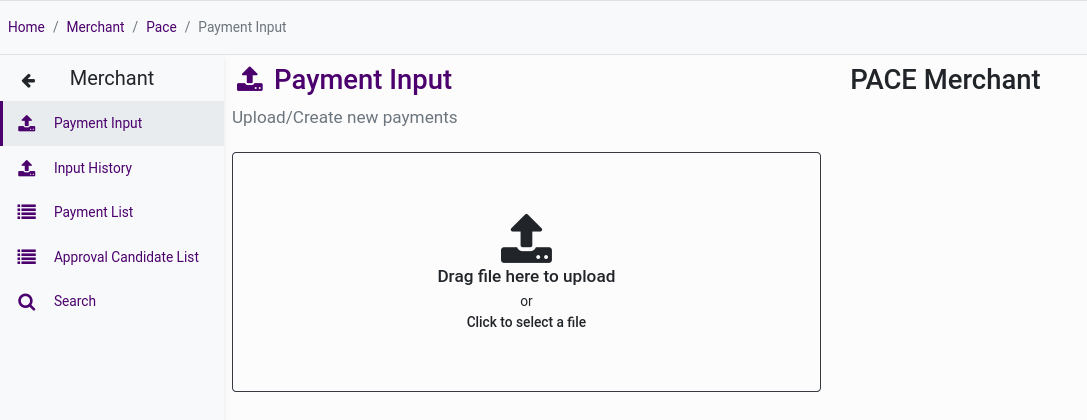
Payment input
Payment File Upload
Files can be dragged to the upload area either singly or in groups, or you can click on the upload area to use a file explorer to select your files. The files are uploaded immediately with a progress bar displayed to track the upload.

File upload progress
Payment Input History
Select the Input history function from the left hand side menu to access a list of uploaded files and their status. This list is filtered by day, allowing you to see historical uploads.
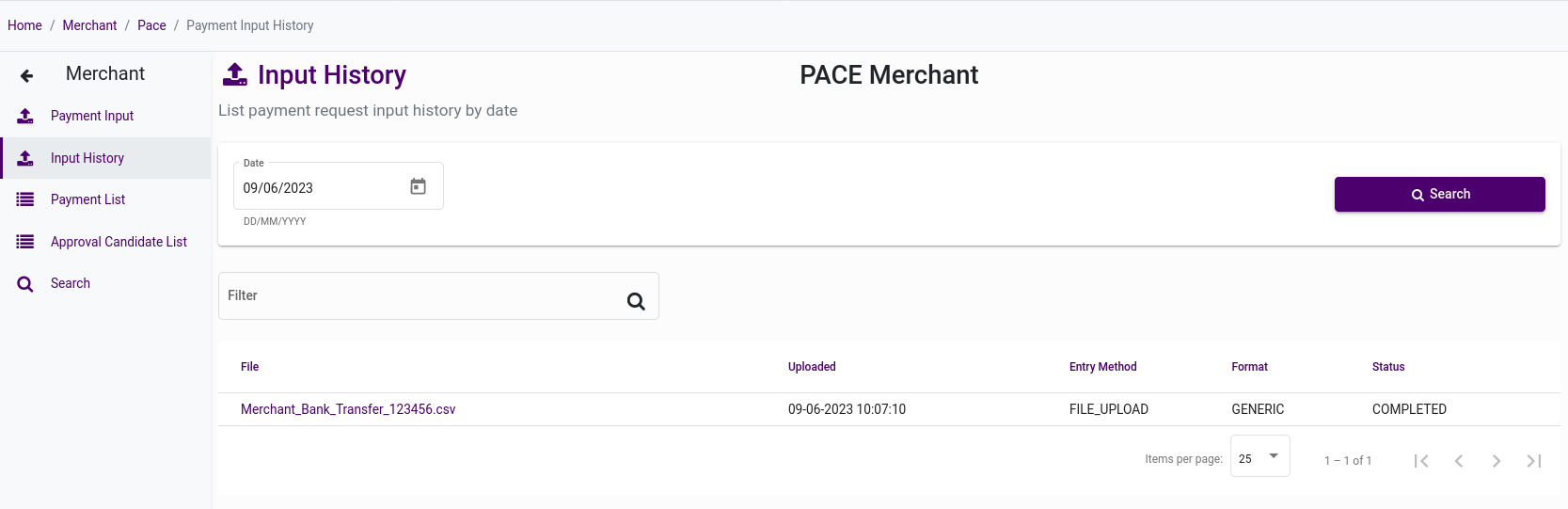
Input file history
Payment Search
Clicking on the filename jumps you directly to the payment search function with the file name preselected, allowing you to easily track the progress of the payments uploaded in the file.
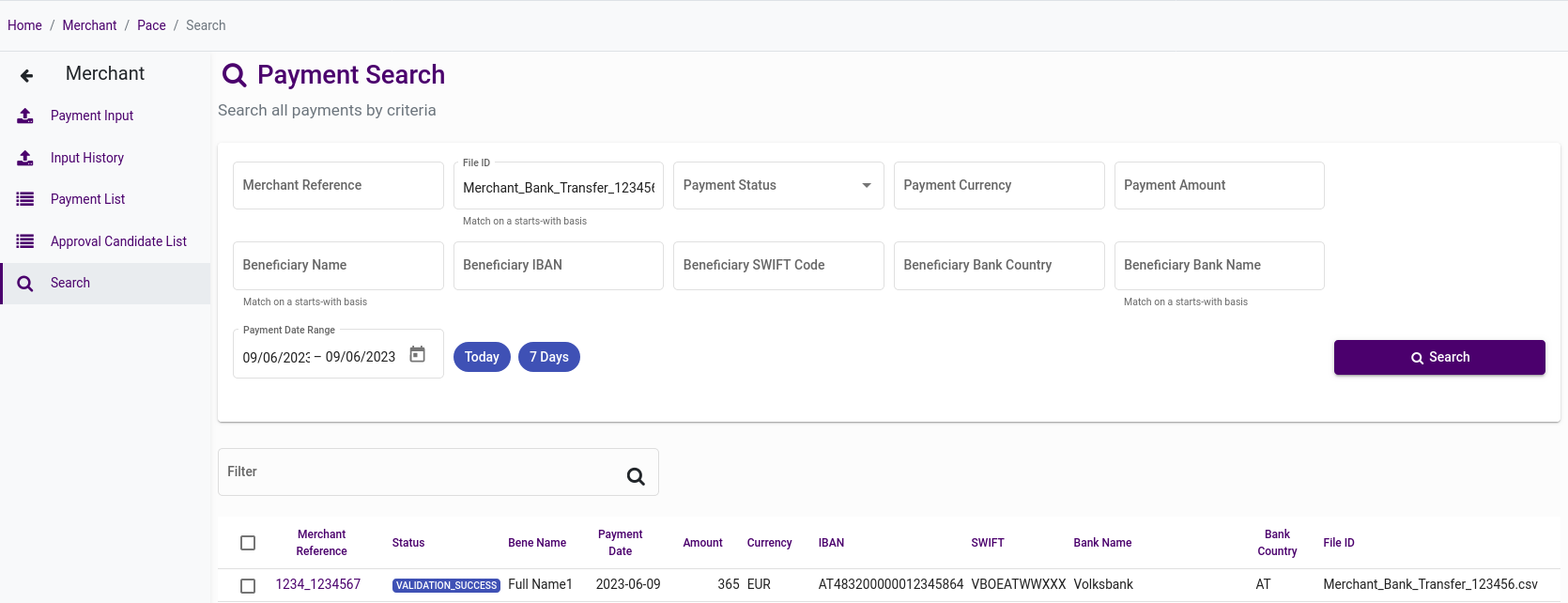
Payment search by file
Verifying Payments
Once payments are uploaded into Payen PACE, they are ready for validation checks, then proposing for approval.
List Payments
Select the Payment list function from the left hand side menu, to access the list of all validated payments.
Payen PACE automatically applies validation to the payments data and the results are shown as follows:
- Payments that validate successfully are shown with a green tick.
- Payments that are correct but have fields that could be improved are shown with a yellow banner and a warning triangle.
- Payments that fail validation are highlighted with a red banner and a blocked icon.
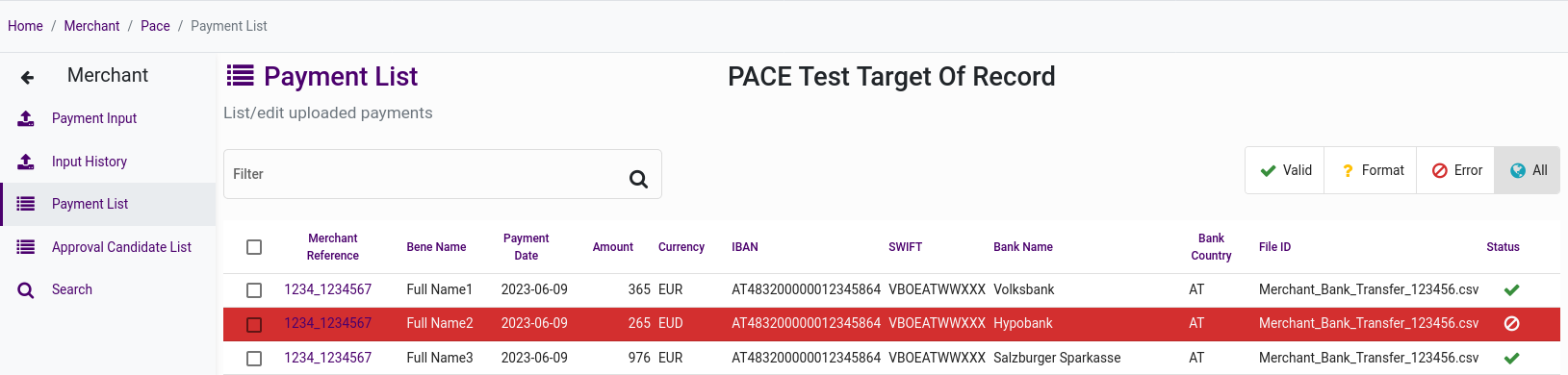
Payment list showing a validation error
Update Payments
To update a payment that is showing an error, click on it's reference to view the full payment detail.
From here you can click edit to change any fields as needed.
When the payment is saved it is automatically re-validated and the updated status is displayed.
All changes / edits to payments are recorded along with the user, their current IP address and the time/date.
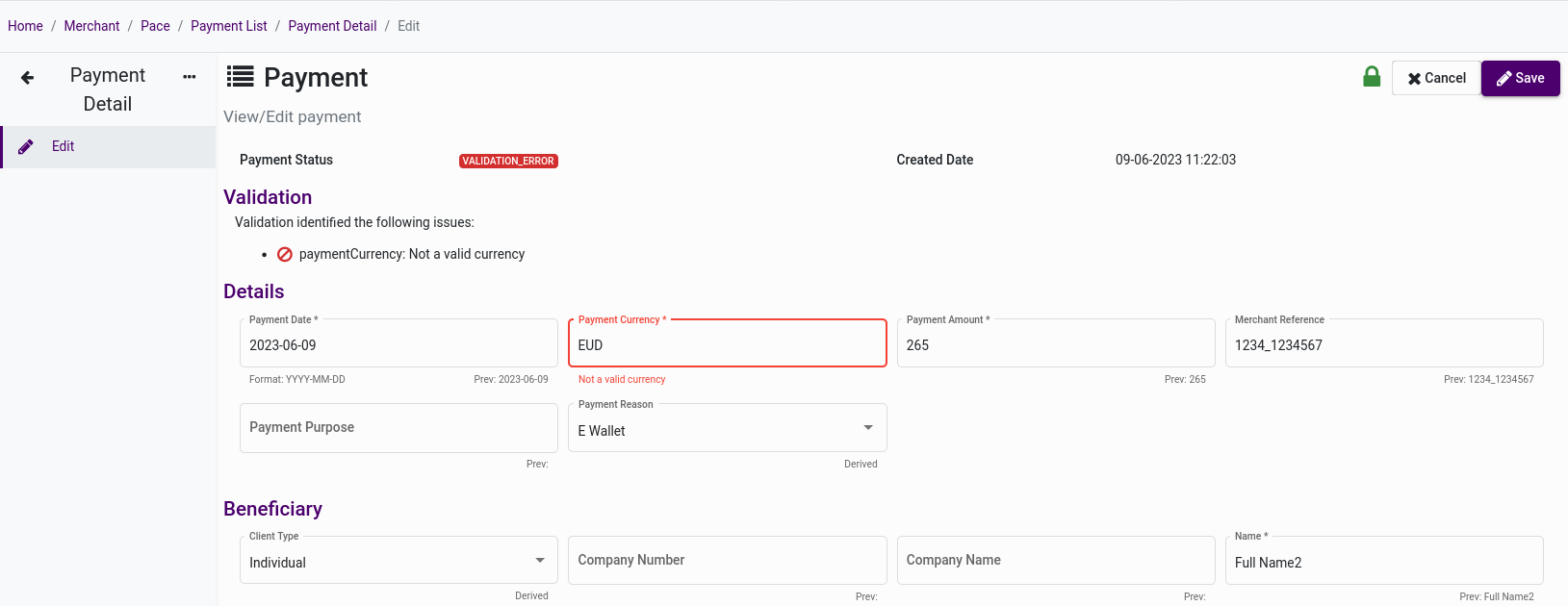
Edit payment highlighting the field in error
Action Payments
To send payments for approval, check the boxes against the payments you wish to action.
The following buttons then become available:
- Propose for approval - This moves the payment onto the ready for approval list.
- Export - This exports the payments into a Payment file.
- Delete - This tags the payment as deleted, removing it from the list.
The filter box can be used to selectively show payments based on any visible columns
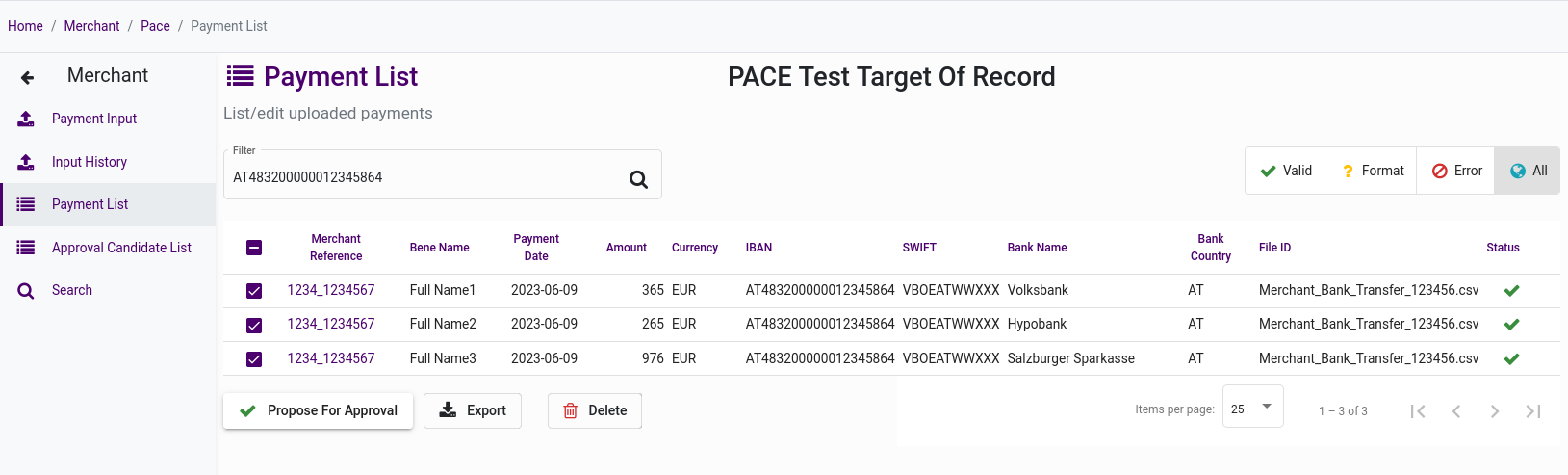
Payment list with actions available
Approving Payments
Before payments are considered ready for processing in Payen PACE, they must first be approved.
Approve Payments
Select the Approval candidate list function from the left hand side menu, to access the list of all proposed for approval payments.
You cannot approve any payments that you have created or edited. You will see an '*' after the reference on any payment that you have created or changed.
To approve payments for processing, check the boxes against the payments you wish to action.
The following buttons then become available:
- Approve - This approves the payment, allowing Payen PACE to begin processing.
- Reject - This rejects the payment, causing it to move back to the payments list.
- Delete - This tags the payment as deleted, removing it from the list.
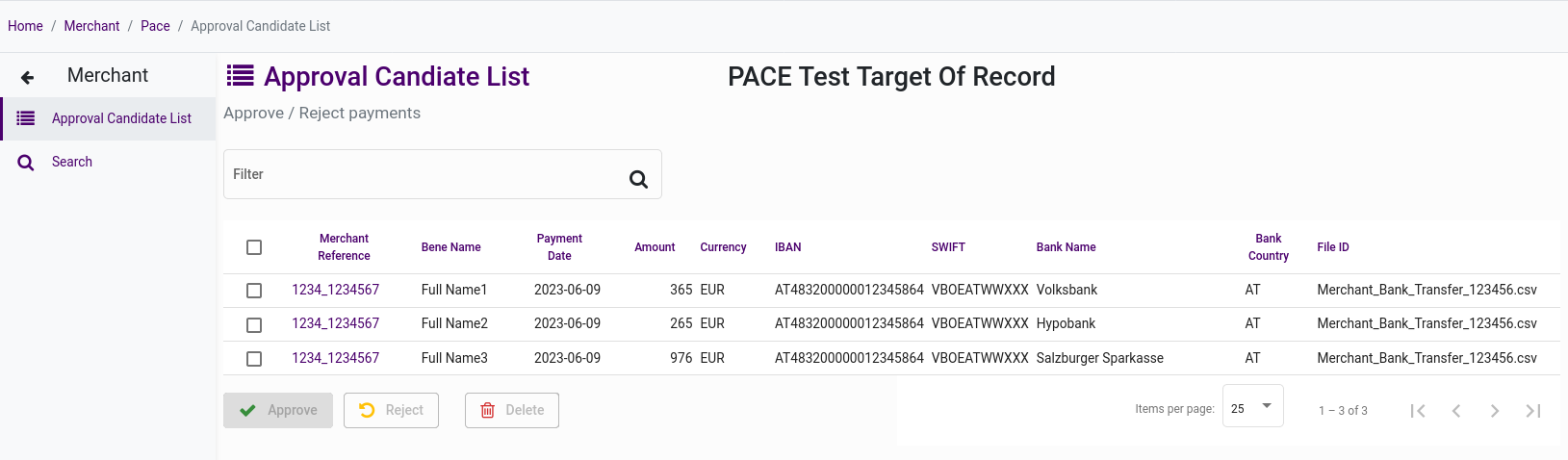
Approval candidate list
Payment Search
To track payment status, you can use the search function to retrieve a list of payments based on a variety of criteria.
Search Payments
The search function is located toward the bottom of the Payen PACE left hand side menu.
Fill in any criteria you want to restrict the search to, select a date range, and click Search.
Clicking on the payment reference allows the full detail of a single payment to be viewed.
Results in the list can be selected and exported to a Payment file.
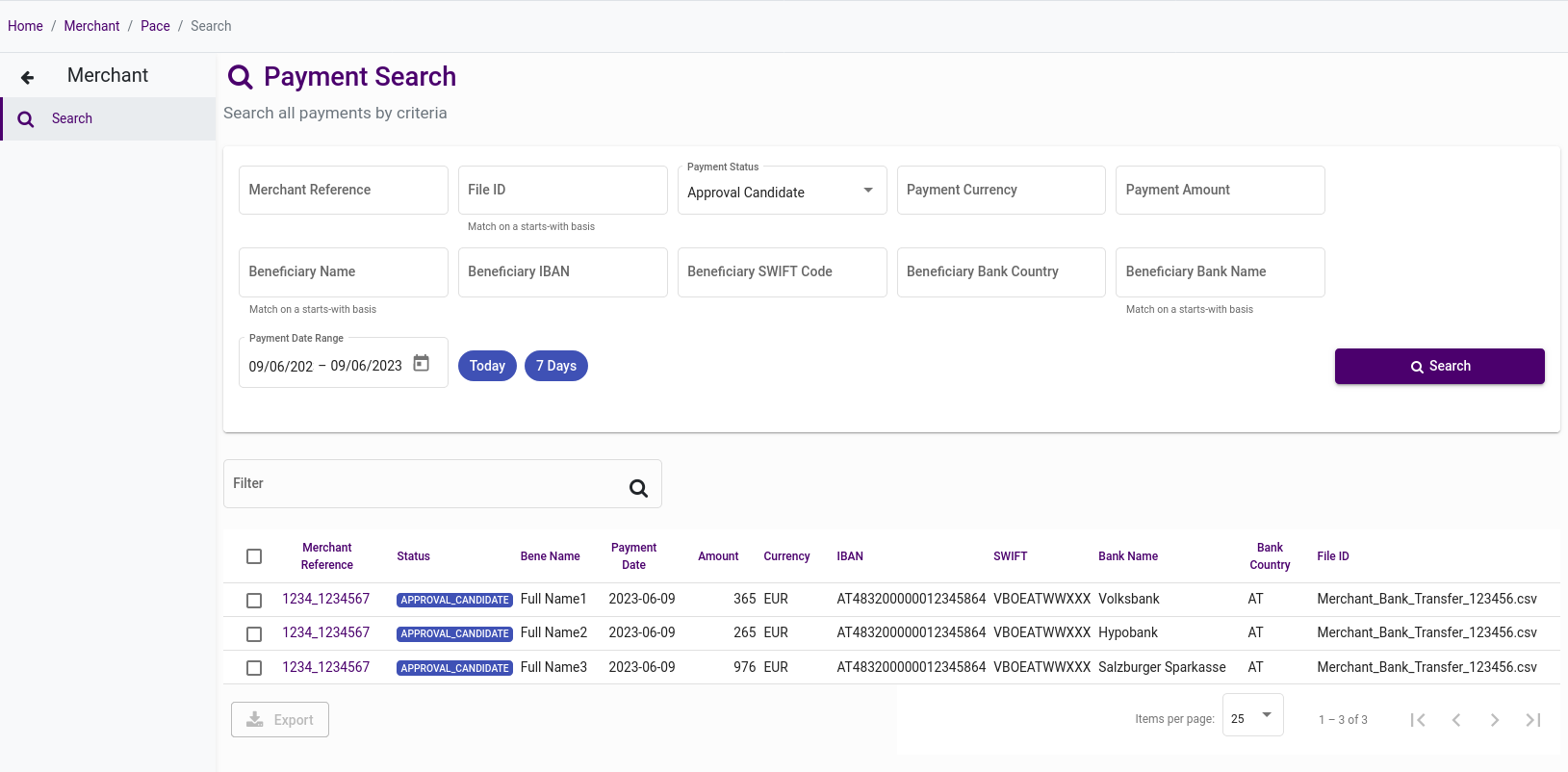
Payment Search
Access
Access to Payen PACE is controlled by permissions that control who has access to each area of the system. The normal flow of payment operations includes a two-person authorisation step.
Payment approval must be carried out by a user not involved in creating, uploading or editing of a payment, so to use the system effectively you must have at least two users configured.
The following permissions are available for Payen PACE:
- PACE_MERCHANT_VIEW - Allows the user basic view access for the payment list.
- PACE_MERCHANT_UPLOADER - Allows the user to upload files to the system, and promote payments to the approvals list.
- PACE_MERCHANT_APPROVER - Allows the user to approve payments on the approval candidate list.
- PACE_MERCHANT_REPORTS - Allows the user to search for payment history.
Access to Vision is managed by your Merchant Administrator, a user with authority to allocate permissions to people in your organisation. If you are unable to access Payen PACE, please speak to your administrator.